
 ASSET HELP / FEATURES
Before you start
- Asset Pro or PursuitFoundry Pro, and an exported launch pack. Uploads use the exported files in screenshot order.
- App Store Connect: a team API key (
.p8) with its issuer ID and key ID, the numeric app ID, an editable iOS version and an existing language. - Google Play: a service-account JSON key with the Google Play Android Developer API enabled and store-listing permission for the app.
- Microsoft Store: an MSIX app with a published submission, and an Entra application (tenant ID, client ID, client secret) with the Manager role in Partner Center.
How to
Open the Upload step
In Launch Pack, select Upload and turn on Add upload task to this Blueprint. A card appears for each store your platforms use, showing its destination and what an upload changes.
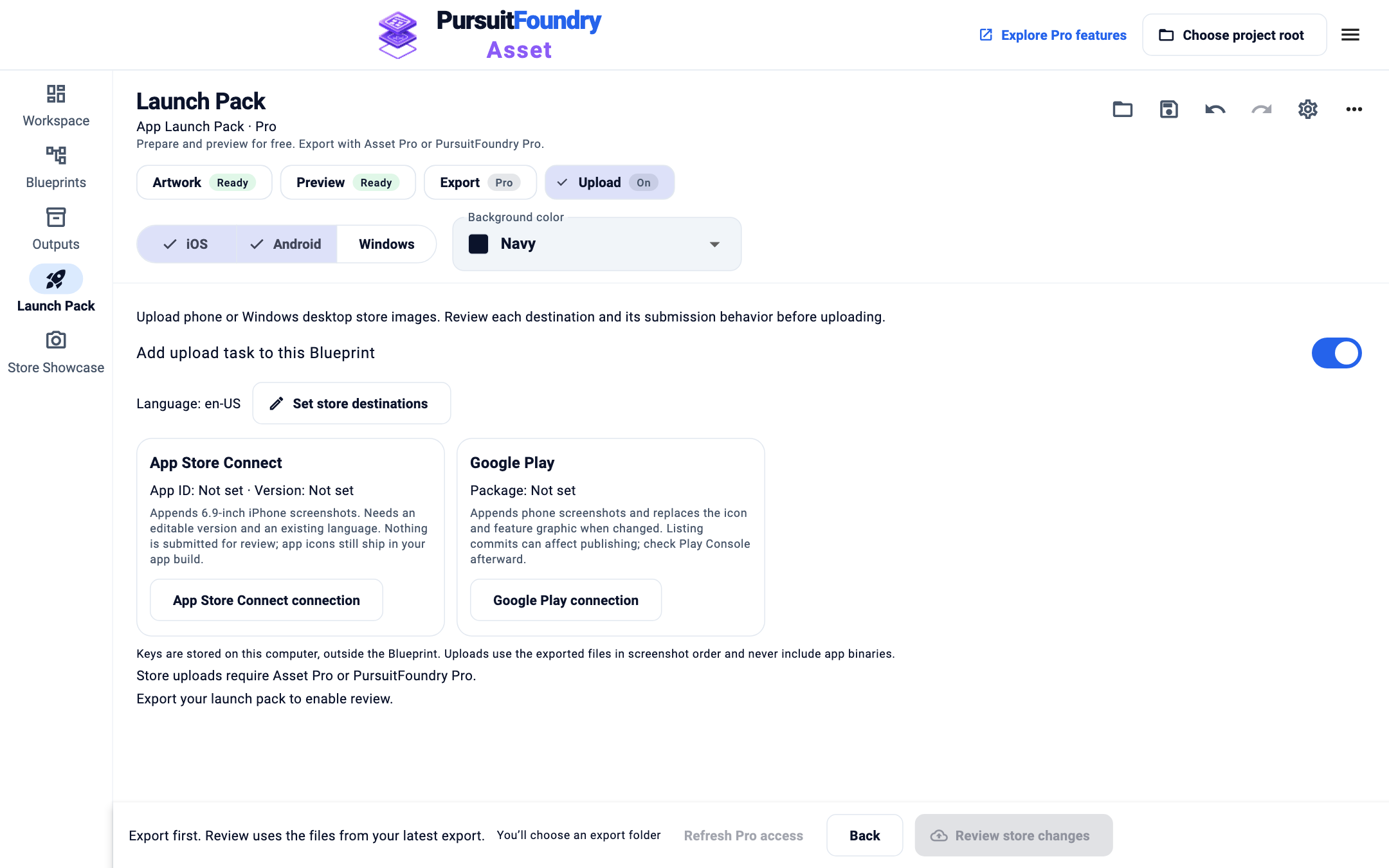
App Store Connect and Google Play cards for an iOS and Android pack. Set store destinations
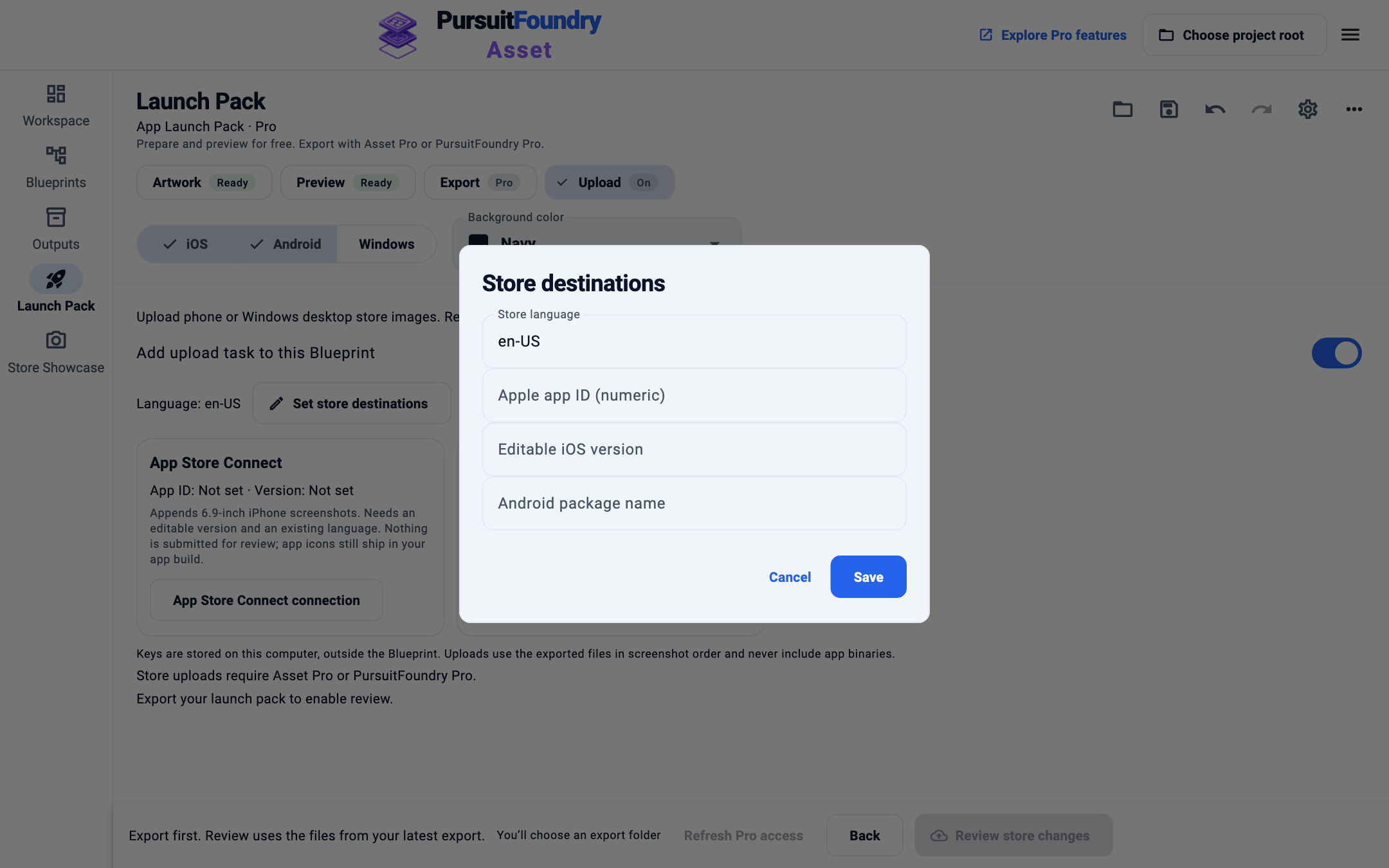
Select Set store destinations. Enter the Store language, Apple app ID (numeric), Editable iOS version, Android package name and, for Windows, Microsoft Store product ID (MSIX). Select Save.
Connect each store
On each store card, select App Store Connect connection, Google Play connection or Microsoft Store (MSIX) connection. Enter the IDs, choose the key file (Choose .p8 key or Choose service-account JSON) and select Save connection. Connections are shared with Store Showcase, so you set each store up once.
Export, then review
Export the launch pack on the Export step. Back on Upload, select Review store changes in the bar. The review lists each destination, every image to be added or replaced, and what happens on submission.
Upload
Select Upload and apply changes, or Upload and submit Microsoft update for Microsoft Store. Each store reports its own result on the Upload step.
Results
- App Store Connect: appends 6.9-inch iPhone screenshots in order. Nothing is deleted and nothing is submitted for review.
- Google Play: appends phone screenshots and replaces the store icon and feature graphic when they changed. Check Play Console afterwards: publishing depends on your listing.
- Microsoft Store: creates a submission from the published version, appends desktop screenshots (up to 10) and replaces the Store tile, then starts certification with Manual publication. Publish it yourself in Partner Center.
No app binaries, prices, tracks or listing text are uploaded. Apple app icons still ship inside your app build.
Troubleshooting
- Review store changes is grey.
- Export the launch pack first. Changing artwork after export means exporting again; changing destinations means reviewing again.
- The review expired.
- An approved review can be used once, within ten minutes, and only if nothing changed. Review again.
- Microsoft Store says a submission is pending.
- Asset never overwrites or deletes a pending submission. Finish or delete it in Partner Center, then review again.
- “OS secure storage is unavailable.”
- Unlock your computer and try again. On Windows, secure storage needs the Visual C++ runtime installed with Asset.