 ASSET HELP / FEATURES
Before you start
- Anyone can choose platforms, add artwork, preview outputs and save a launch Blueprint. Exporting needs Asset Pro or PursuitFoundry Pro.
- Use separate artwork for each purpose. You need only the artwork for the platforms you choose:
| ARTWORK | USED FOR | WHAT TO SUPPLY |
|---|---|---|
| App icon | All platforms | A square master, at least 1024 × 1024 |
| Splash logo | All platforms | Logo artwork for 1x / 2x / 3x splash assets |
| Play Store feature graphic | Android | Landscape artwork for a 1024 × 500 banner |
| Phone screenshots | iOS, Android | 1–8 images for iOS, or 2–8 for Android |
| Windows desktop screenshots | Windows | 1–10 desktop captures; output is 1920 × 1080 |
How to
Open Launch Pack
On the start screen select App Launch Pack · Pro, or select Launch Pack in the navigation. The top bar holds Open launch Blueprint, Save launch Blueprint, Undo, Redo, Project settings and More Launch Pack tools. The step buttons below it, Artwork, Preview, Export and Upload, each show their progress.
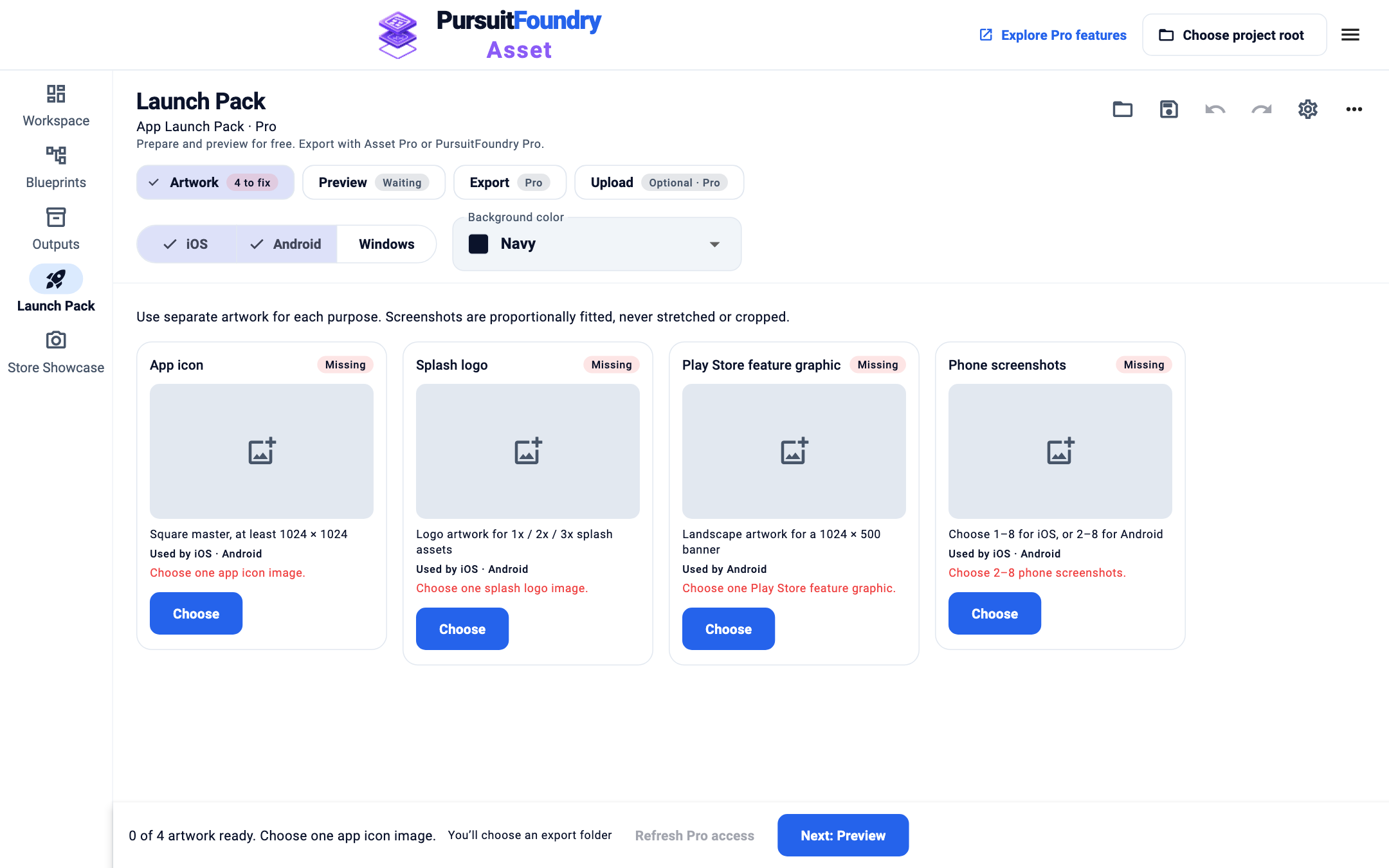
A new launch pack: four artwork cards to fill, shown as “4 to fix” on the Artwork step. Choose platforms and a background
In the toolbar, select iOS, Android, Windows or any combination. Only the artwork those platforms need appears. Pick a Background color; it fills transparent artwork and the margins around fitted images.
Add artwork to each card
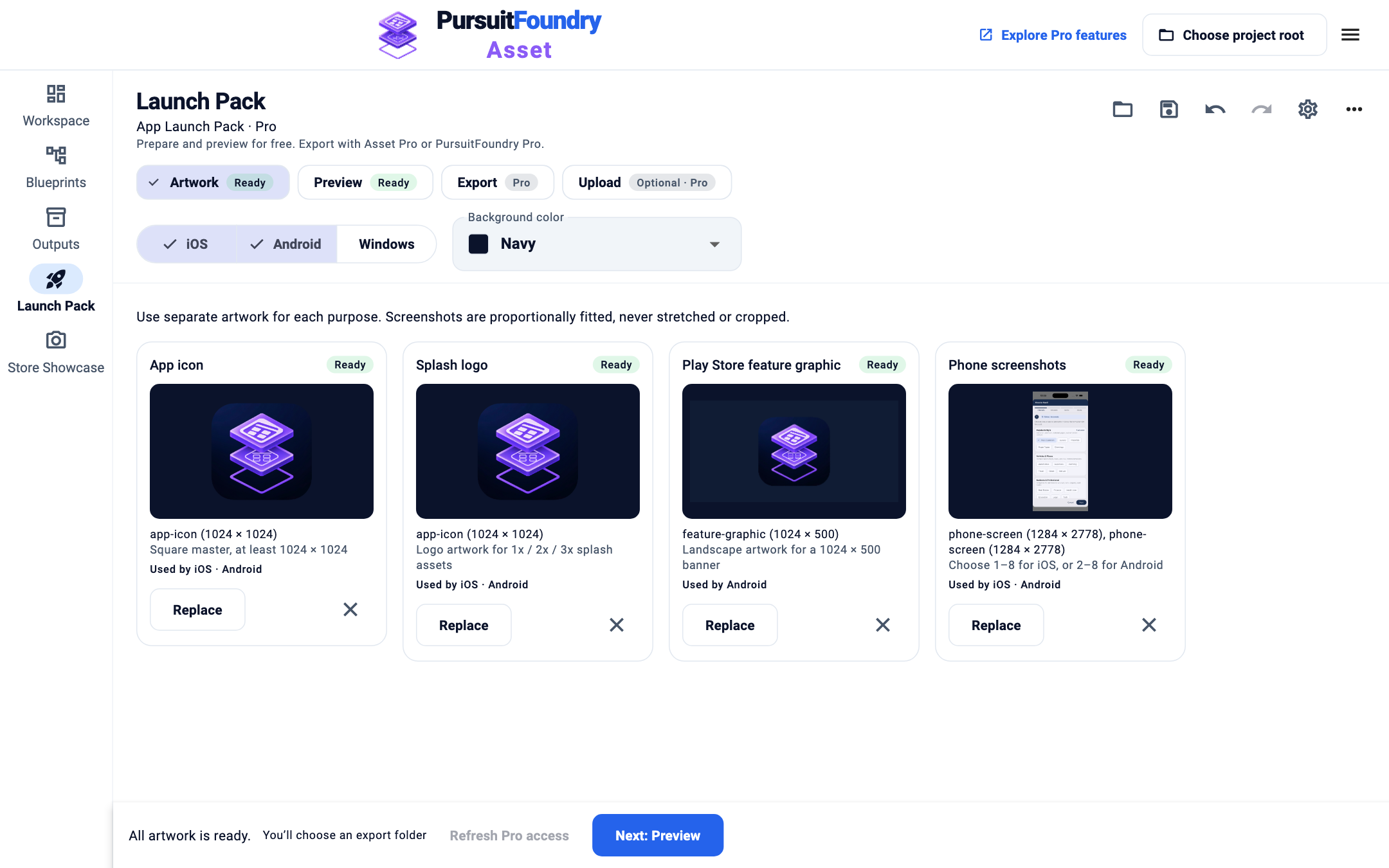
On the Artwork step, select Choose on each card. A card shows its preview, file and size, which platforms use it, the rule it must meet, and a status: Missing, Ready, Will enlarge or Check. Any problem is listed in red on the card that fixes it.
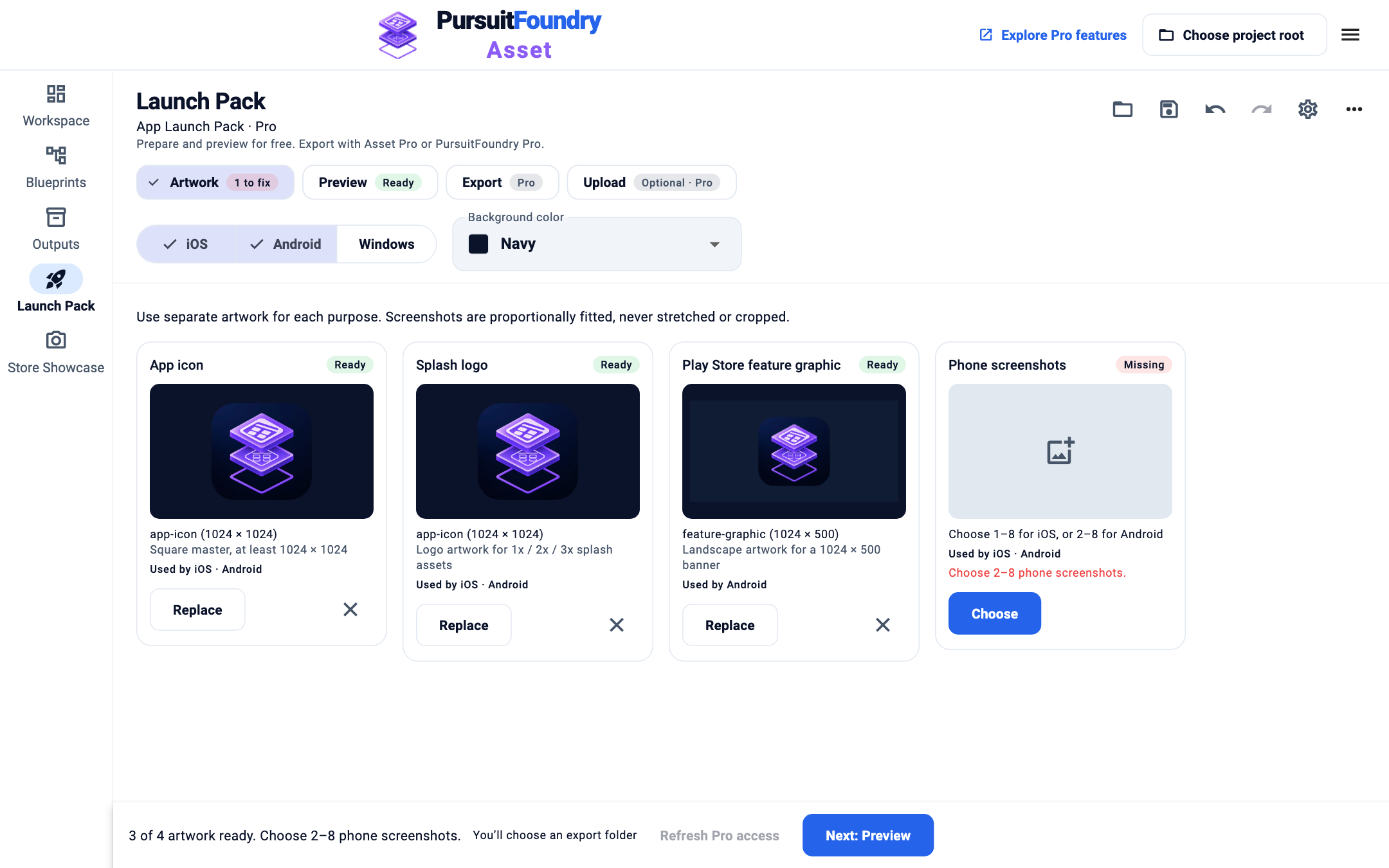
Three cards are ready; Phone screenshots still needs 2–8 images. Move on to Preview
When every card is Ready, the Artwork step shows Ready and the bar reads All artwork is ready. Select Next: Preview.
Check the preview
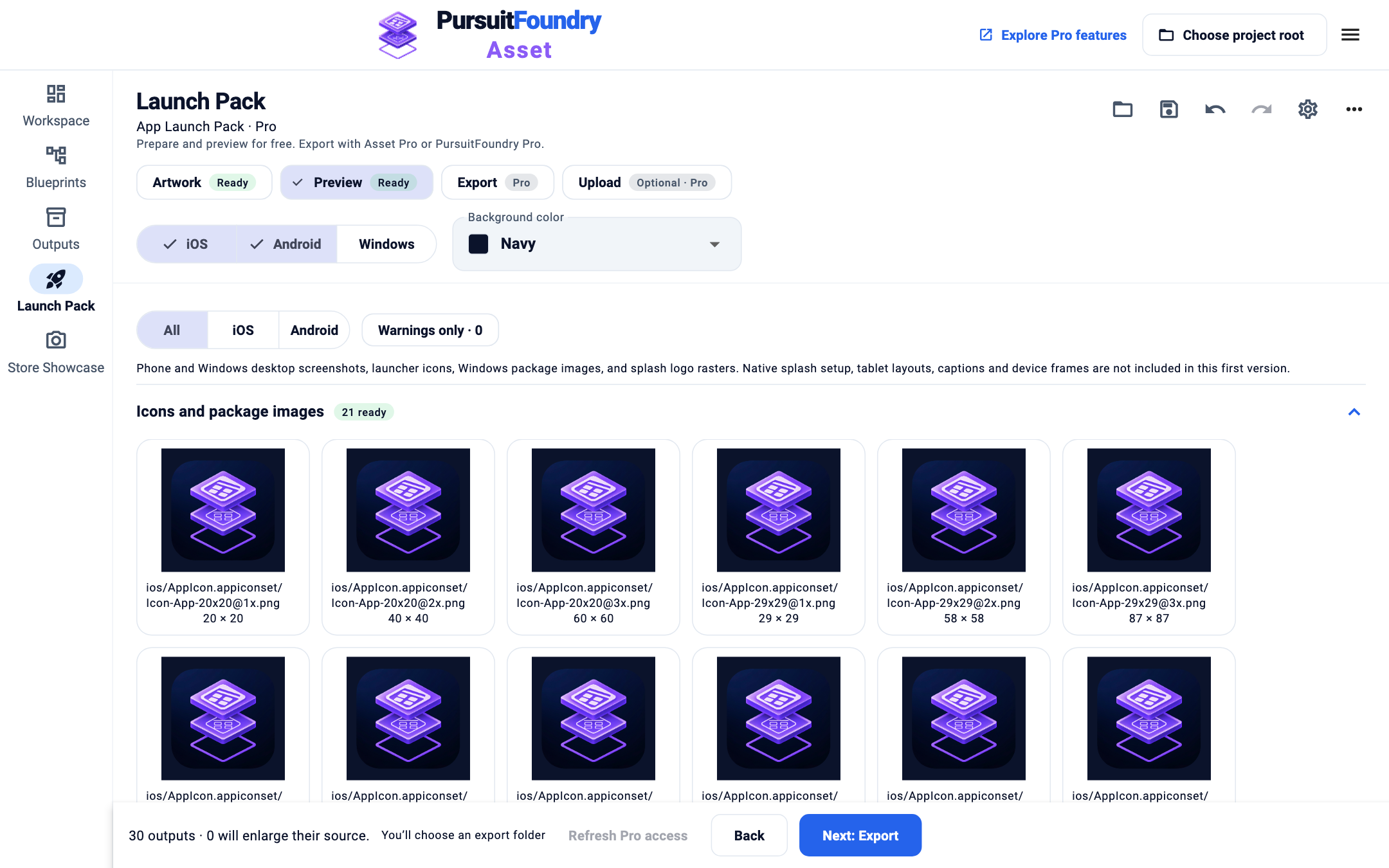
Outputs are grouped into icons and package images, splash logos, store artwork and screenshots. Filter by platform, or turn on Warnings only to see just the outputs that will enlarge their source.
Export
On the Export step, check that each platform is Ready and where files will go, then select Export launch pack in the bar. Asset creates a new output folder and leaves your original files unchanged. Without Pro the button reads Unlock with Pro and explains your options; select Continue preparing to keep working.
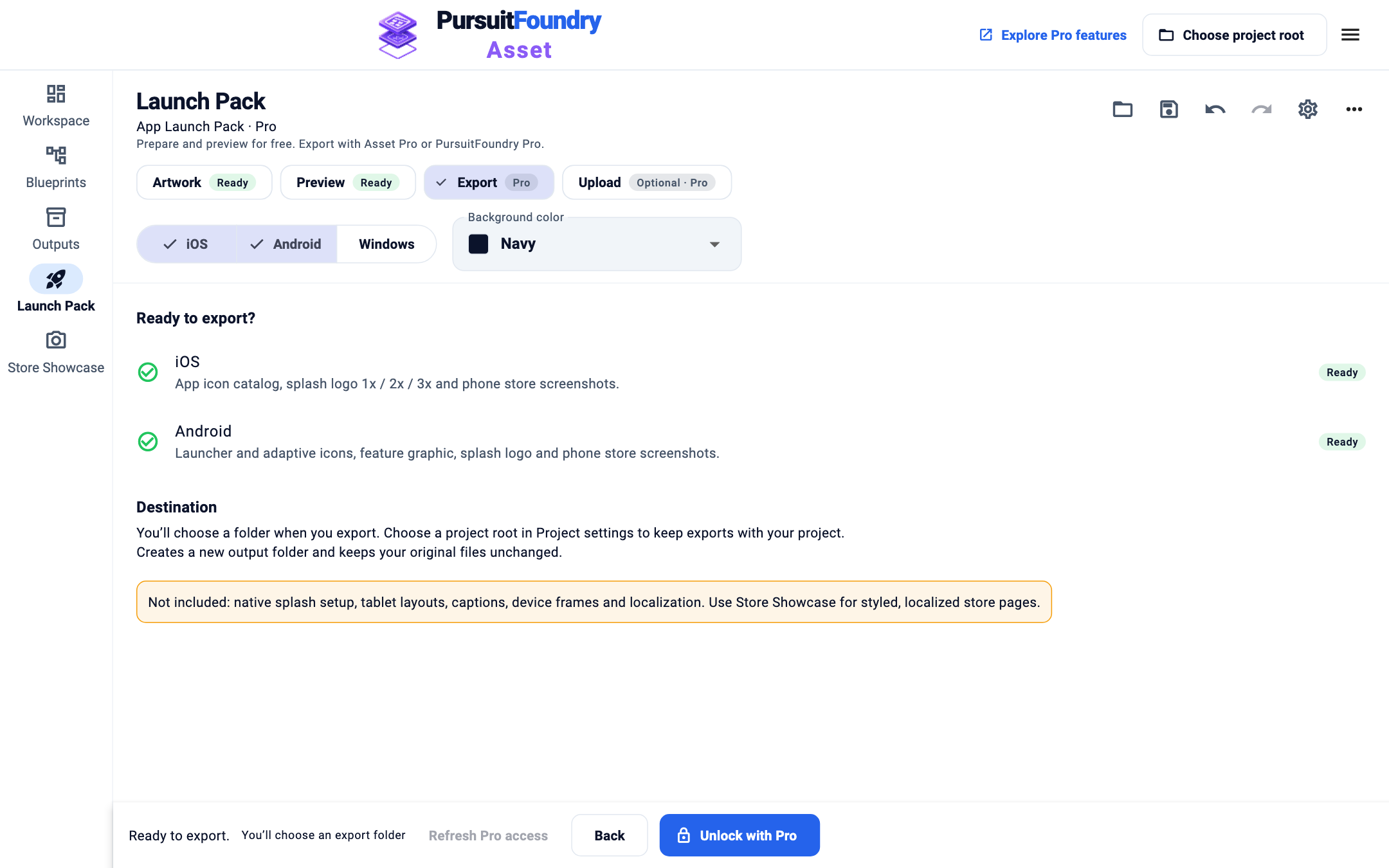
Both platforms are ready; without Pro the bar shows Unlock with Pro. Save the launch Blueprint
Select Save launch Blueprint in the top bar to save your platforms, artwork and background as an
.assetlaunchfile. Reopening it starts at the first step with work left. Project settings sets the project folder that keeps Blueprints, sources and exports together.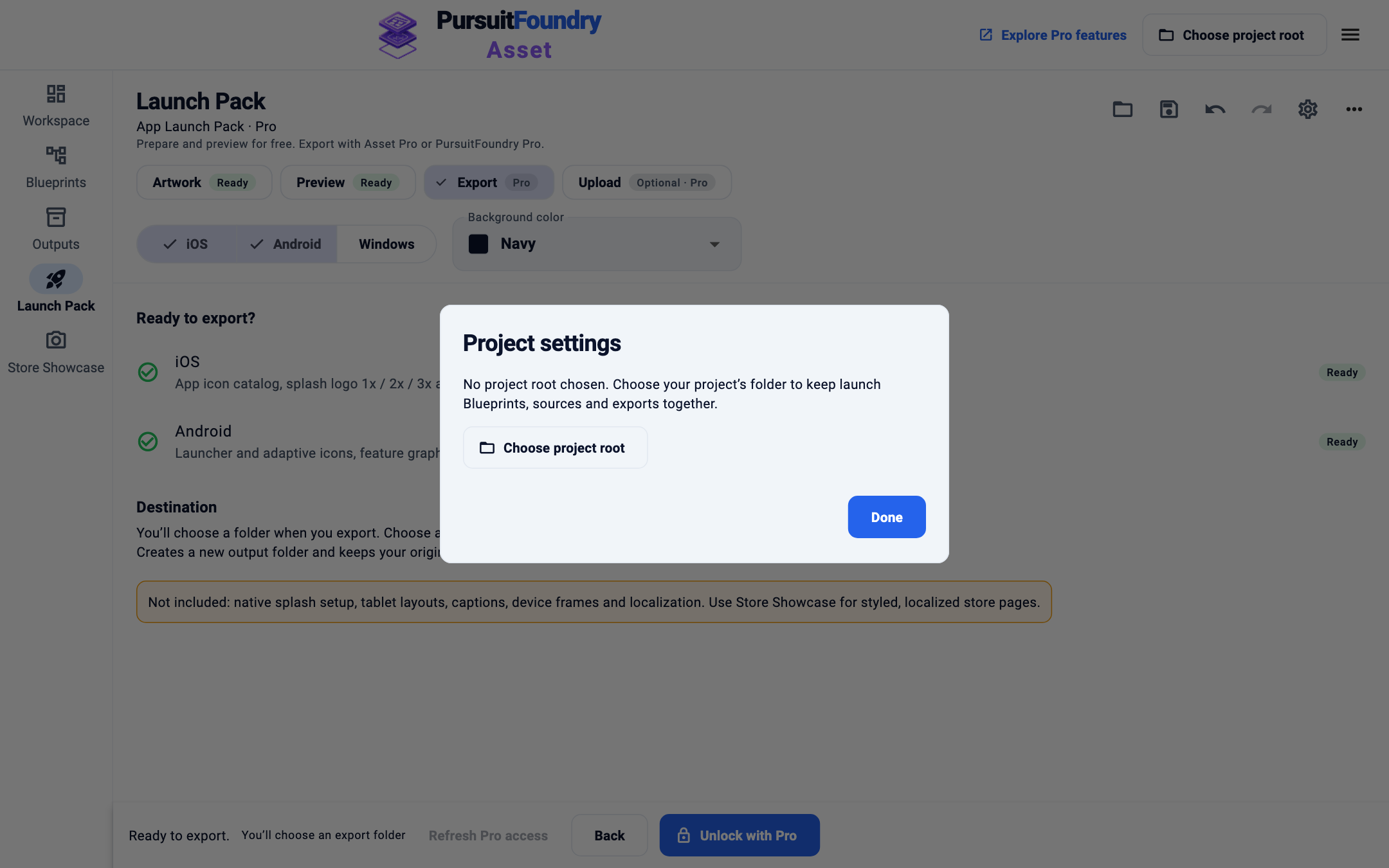
Results
Exports go to a new folder in your project’s PursuitFoundry/Asset/Exports folder.
- iOS: the app icon catalog and phone store screenshots.
- Android: launcher and adaptive icons, Play Store artwork including the feature graphic, and phone store screenshots.
- Windows: a seven-size ICO (16 to 256 pixels), scale-qualified package icons, tiles and splash images, a 300 × 300 Store tile and 1920 × 1080 desktop screenshots.
- All platforms: splash logo images at 1x, 2x and 3x.
Troubleshooting
- The export button says Unlock with Pro.
- Exporting needs Asset Pro or PursuitFoundry Pro. Your platforms, artwork and background are kept, so save the launch Blueprint and export once Pro is available.
- “Purchases are not available in this build.”
- Pro purchases are not open yet. Everything except export keeps working.
- A card says Will enlarge.
- The artwork is smaller than one of its outputs. Select Replace and choose a larger file, or accept the scaled-up result.
- I changed something by mistake.
- Select Undo in the top bar. Redo puts the change back.
- My Windows package images do not appear in my app.
- Asset exports the images only. Reference them from your app’s package manifest.