
 PURSUITFOUNDRY HELP / SHARED
Before you start
Every PursuitFoundry app uses Blueprints the same way. A Blueprint records:
- Steps: what happens to your sources, in order.
- Settings: the options for each step, such as format and scale.
- Outputs: which files are written, their names and where they go.
Built-in Blueprints can’t be changed, so you always have a known starting point. The screenshots below are from Asset.
How to
Open Blueprints
Select Blueprints in the navigation. Your Blueprints and the built-ins are listed on the left; select one to open it. It becomes the Blueprint the Workspace uses too. The steps across the top follow the order a Blueprint runs, and each shows what it does, such as Resize · Trim or 15 files.
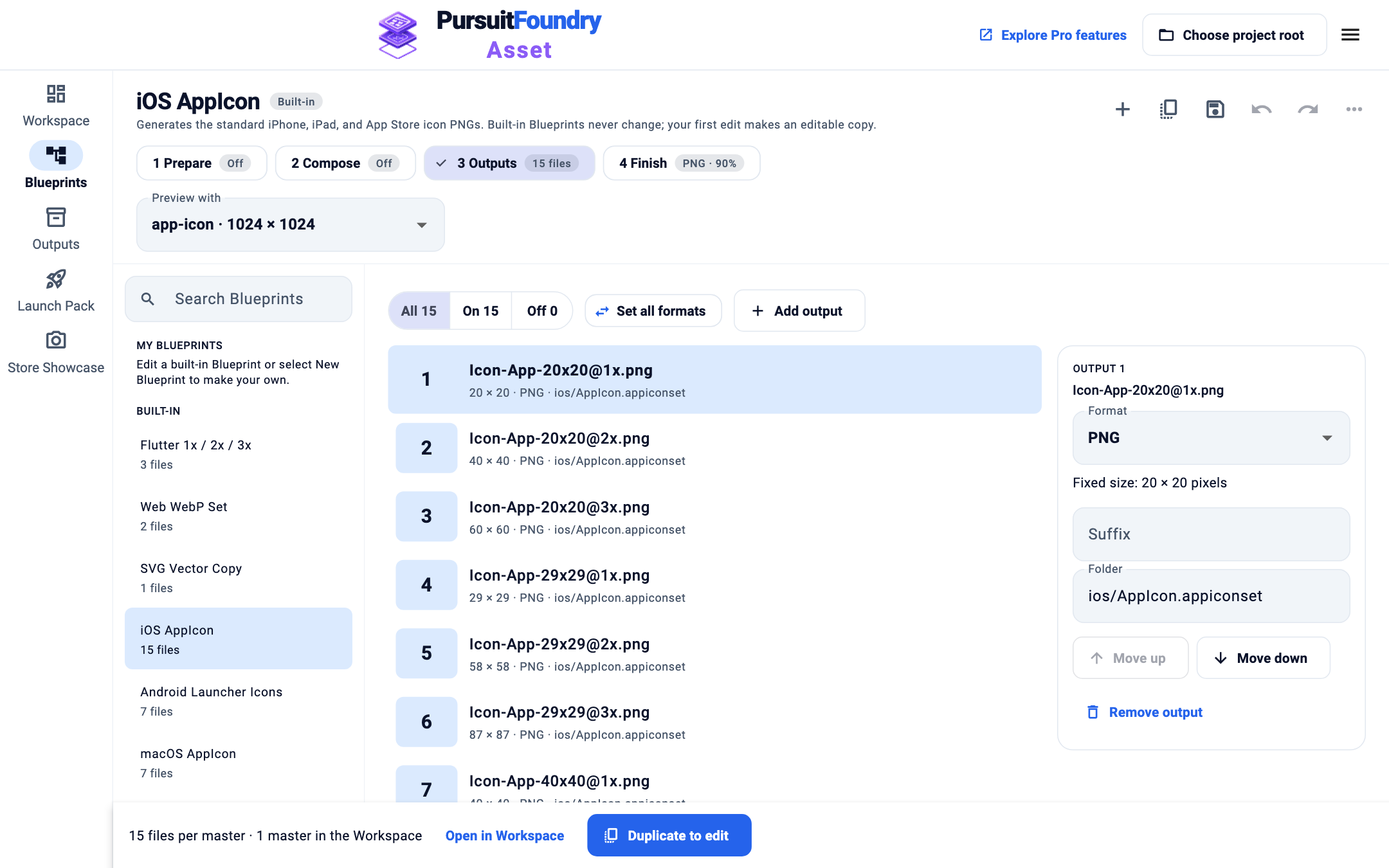
iOS AppIcon, a built-in Blueprint, on its Outputs step. Edit a built-in, or duplicate it
Built-in Blueprints never change. Edit one anyway and your first change makes an editable copy, named in a message at the top. To choose the name, select Duplicate Blueprint in the top bar instead.
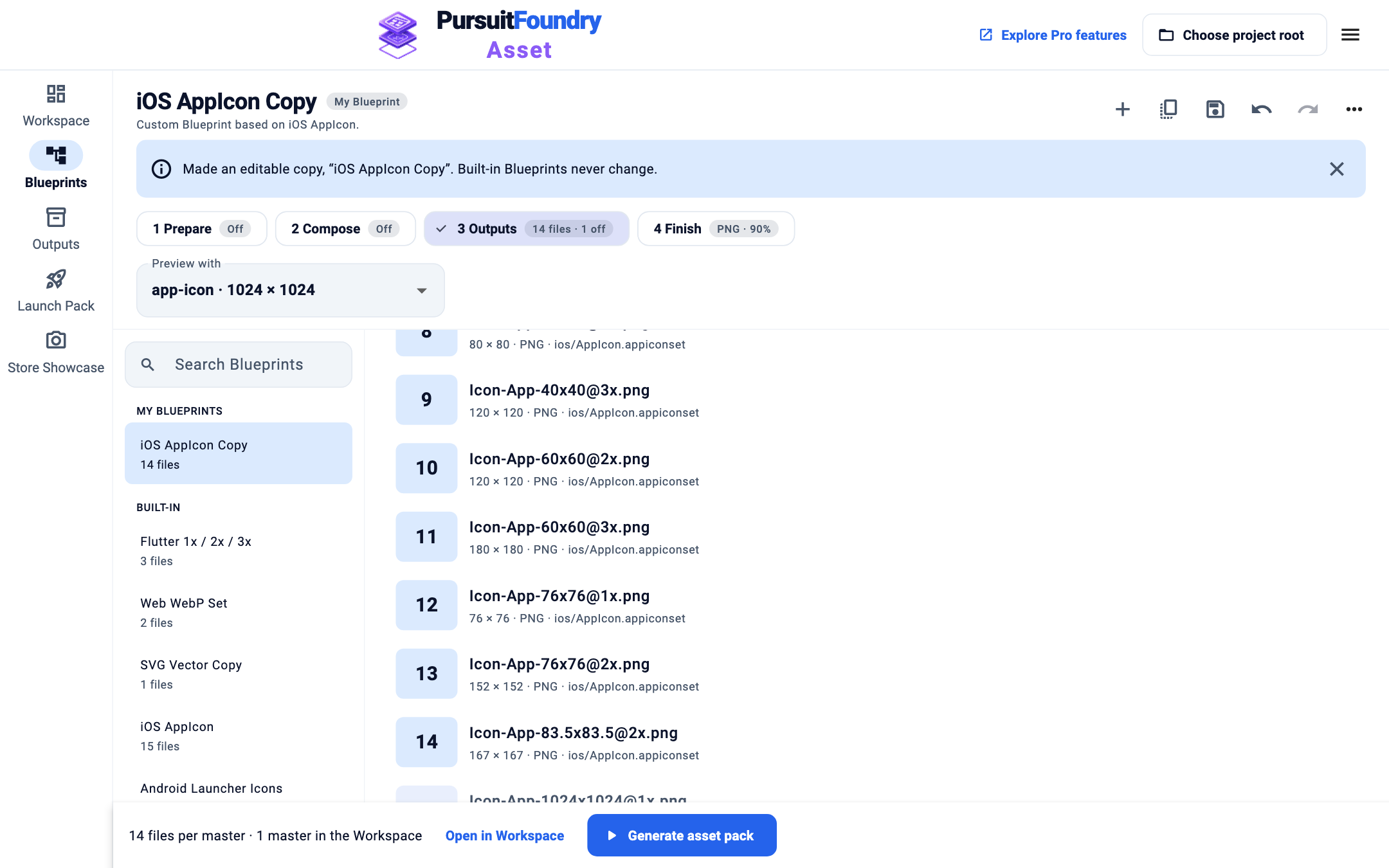
Turning off one output made “iOS AppIcon Copy”. Edit the outputs
On Outputs, select a row to edit that file’s Format, Scale, Suffix and Folder, or to Move up, Move down or Remove output. Click a row’s number to turn that output on or off. Add output adds a file, and Set all formats changes every output at once, for example to WebP.
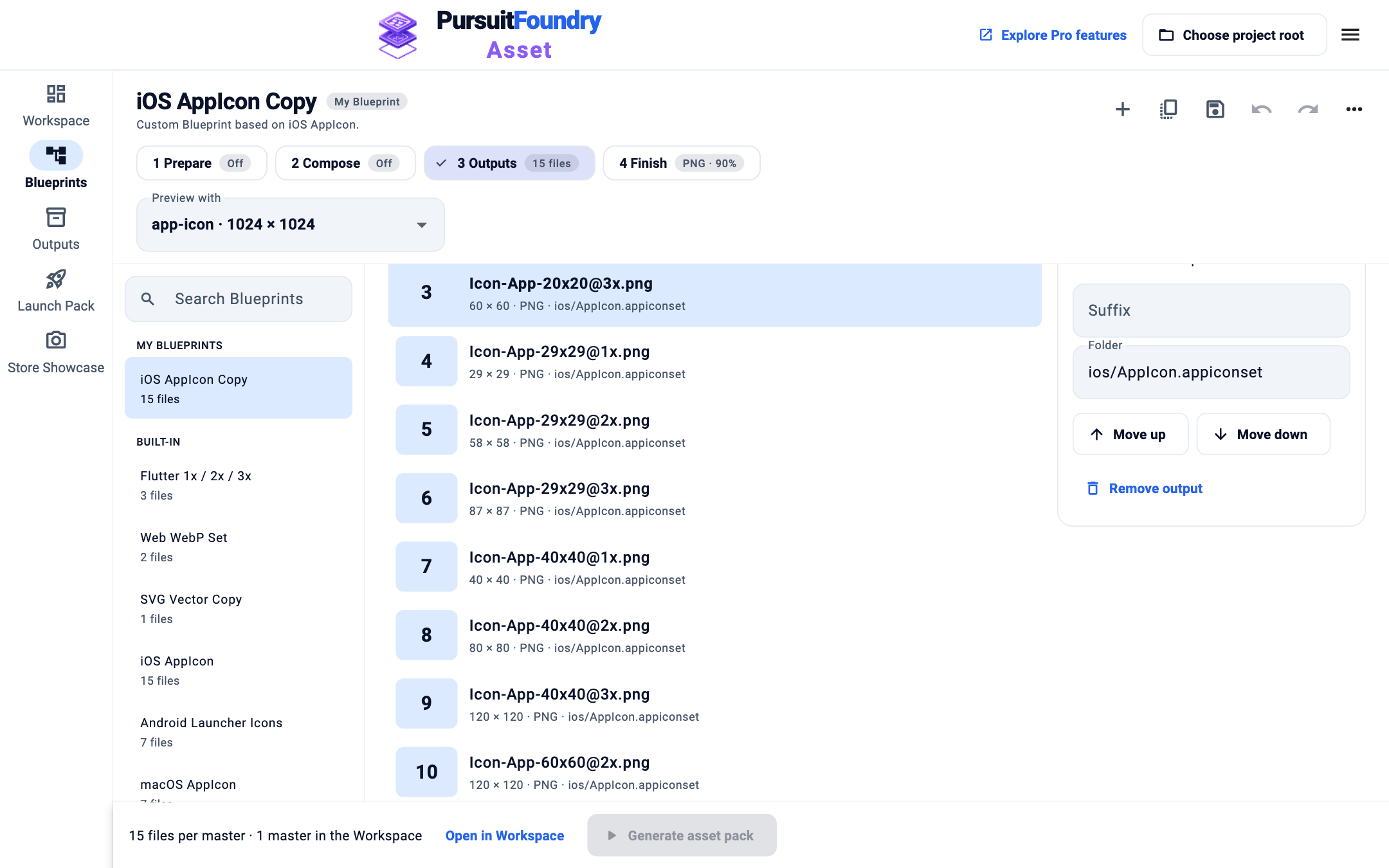
A custom Blueprint with output 3 selected. Set up the other steps
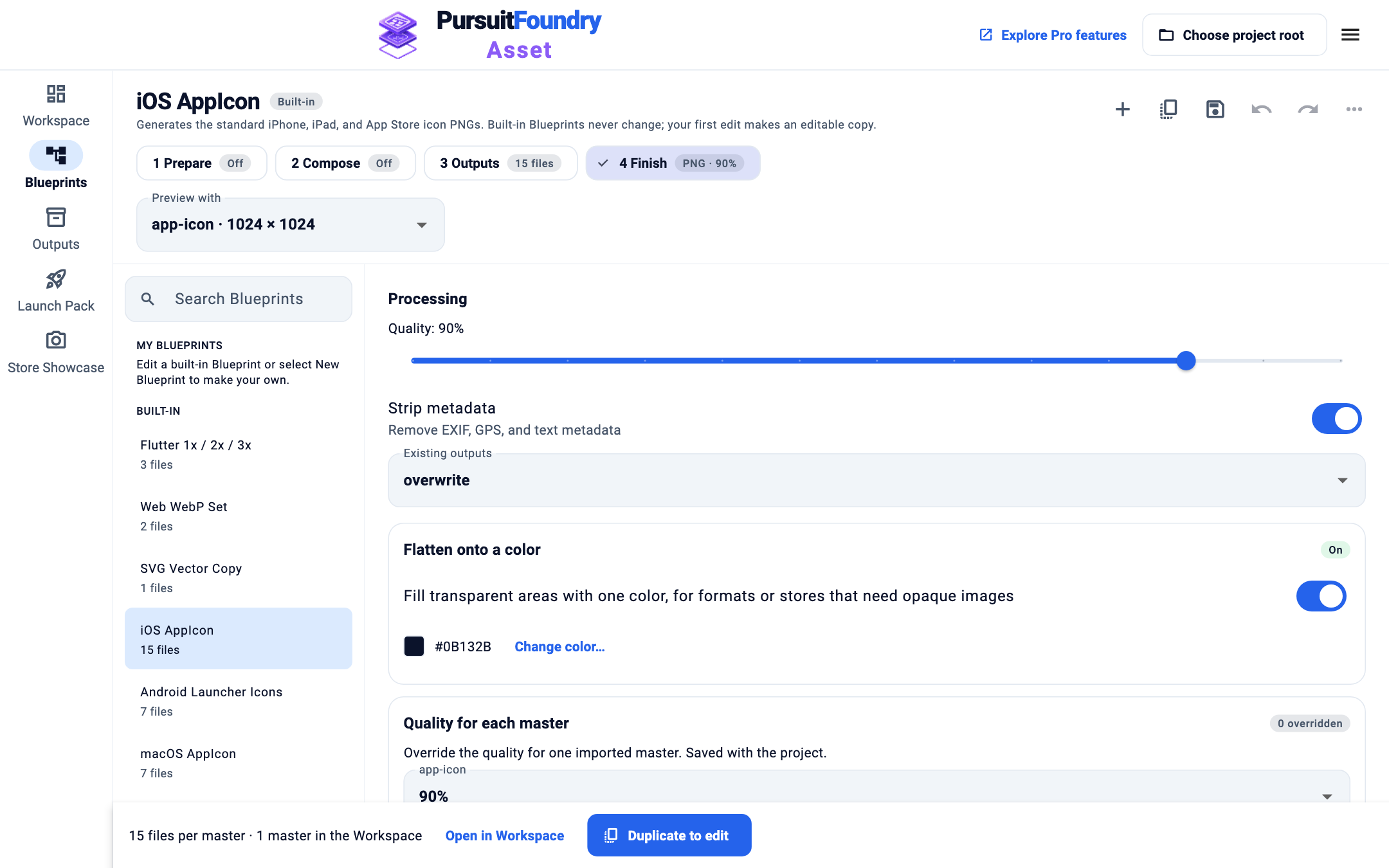
Prepare resizes the master, trims transparent edges and adds padding. Compose places the master on a background. Finish sets quality, metadata, what happens to existing files and an optional color to flatten onto.
Undo, save and organize
Use Undo and Redo in the top bar for any change. Press ⌘S on macOS or Ctrl+S on Windows to save. New Blueprint starts from a single PNG output, and More Blueprint tools renames or deletes one of your Blueprints.
Blueprint files in each app
| APP | FILES |
|---|---|
| Asset | .assetfoundry projects, .assetlaunch launch Blueprints and .assetshowcase Showcase Blueprints |
Results
Troubleshooting
- My change went to a Blueprint called “… Copy”.
- You edited a built-in, so Asset made an editable copy for you. Rename it with More Blueprint tools → Rename….
- “These steps produce conflicting output paths”.
- Two outputs write the same file. Give one a different Suffix or Folder.