
 ASSET HELP / STORE SHOWCASE
Before you start
A Showcase with pages, and optionally your app’s project folder with its localization files (l10n.yaml and ARB files).
How to
Open Languages
Select Languages. A language is complete only when its headlines are reviewed and its screenshots show the app in that language.
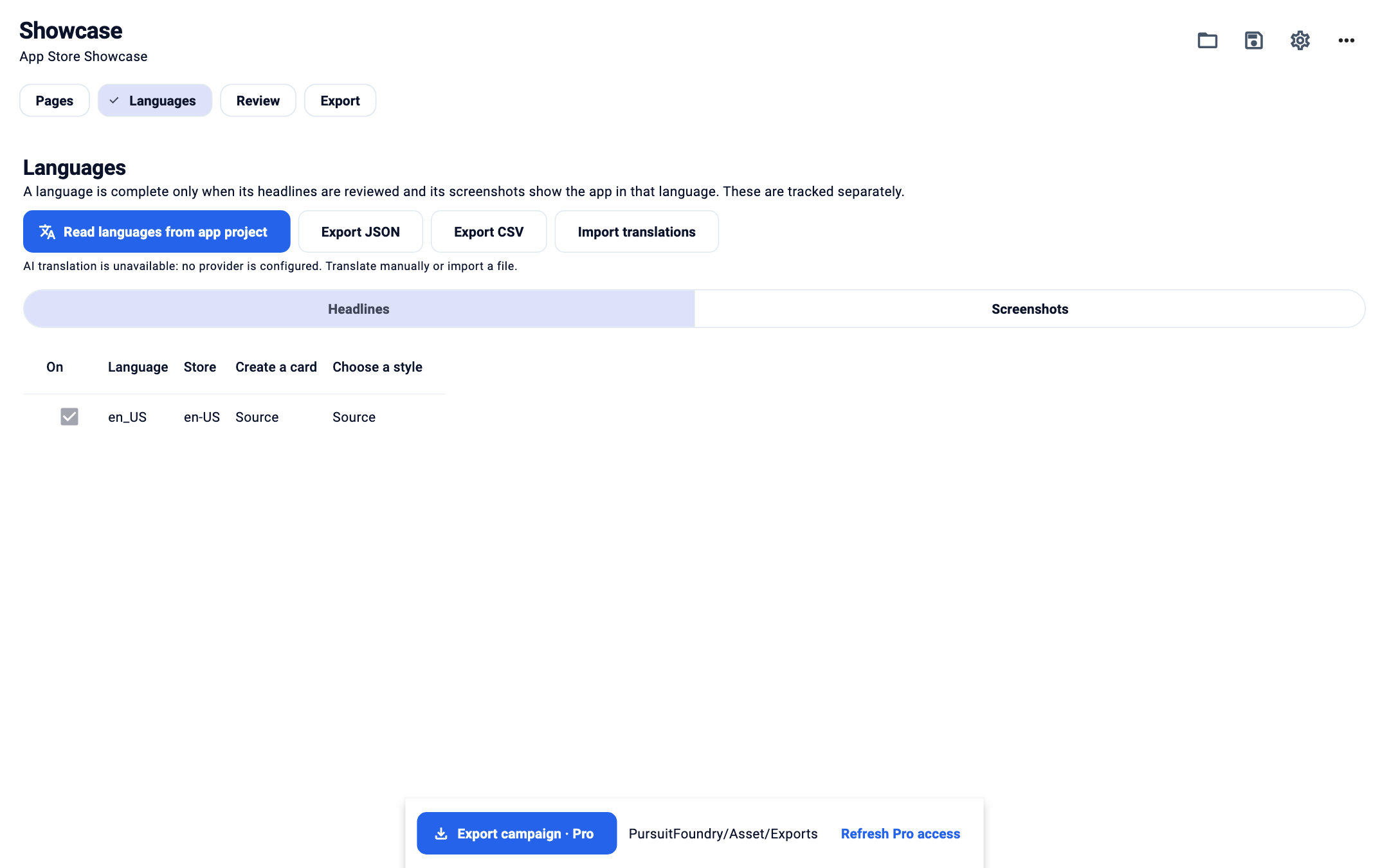
The Languages step with the Headlines and Screenshots tabs. Add languages
Select Read languages from app project to read your app’s locales, or Import translations. Turn languages on or off in the Headlines tab; the base language stays on.
Translate headlines
Edit each page’s headline per language, or select Export JSON or Export CSV, translate the file and import it again. Imported text arrives as a draft; mark it reviewed when checked.
Assign localized screenshots
In the Screenshots tab, assign a capture per page and language, or import a numbered set such as
01-primary.png. Asset asks you to confirm which language each capture shows.
Headline states
| OPTION | WHAT IT DOES |
|---|---|
| Missing | No translation; the page is held out of export. |
| Machine draft | Produced by software and not yet checked. |
| Draft | Written or imported, not yet reviewed. |
| Reviewed | Marked as checked by a person. |
| Outdated | The source text changed since the translation was written. |
Troubleshooting
- The screenshot still shows the base language.
- Translating a headline does not change the app inside the screenshot. Capture the app running in that language and assign it in Screenshots.
- A language is left out of upload.
- Languages such as
en,es,frandpthave several App Store regions. Choose the region before uploading. - Imported rows were rejected.
- Rows that drop placeholders or protected terms are refused. Fix the translation and import again.