
 PURSUITFOUNDRY HELP / SHARED
Before you start
Any folder works, such as the root of your app’s code repository. The screenshots below are from Asset.
How to
Choose a project root
Select Choose project root in the window header, or in Settings on smaller windows, and pick your project’s folder.
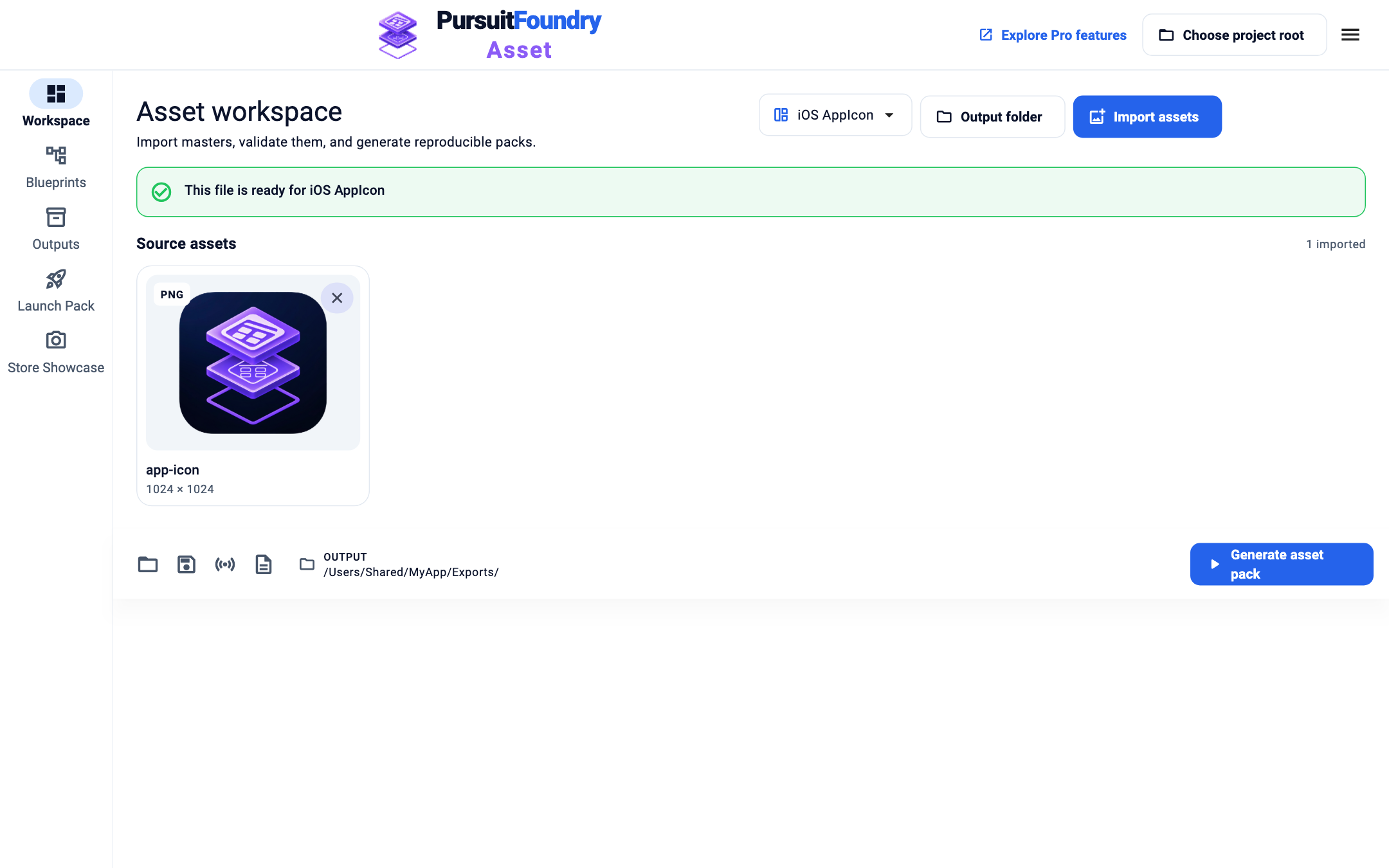
“Choose project root” sits beside the menu at the top right. Know where files go
The app creates or reuses
PursuitFoundry/<App>/inside the root, withBlueprints,SourcesandExportsfolders.Save
Press ⌘S or Ctrl+S, or select Save project. If no root is chosen yet, the app asks for one first. External sources are copied into
Sources.Reopen a project
Select Open Previous on the start screen or in the menu to pick a recent project, or Open project (⌘O / Ctrl+O) to open a Blueprint file.
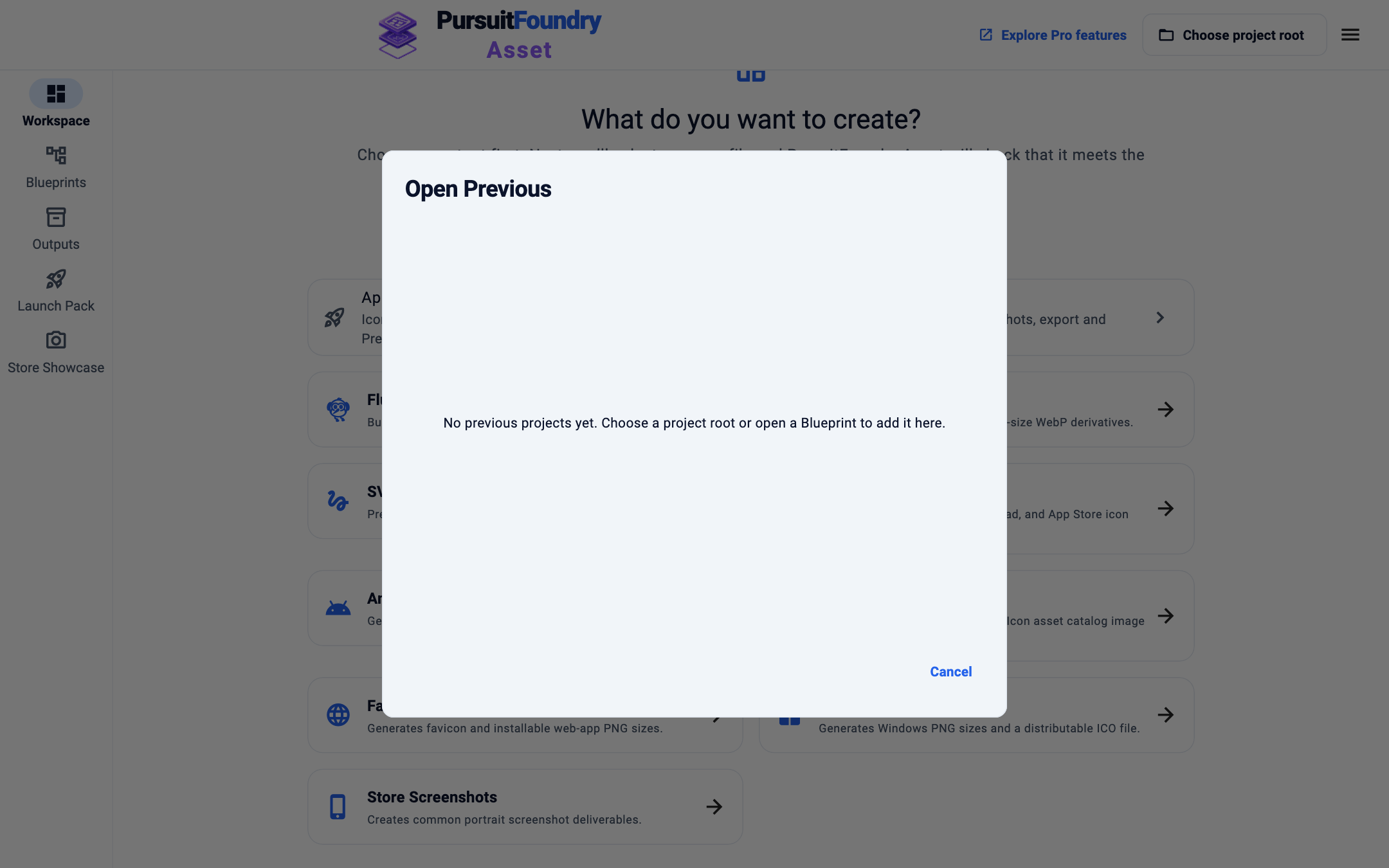
Open Previous lists recent projects; it is empty until you save or open one.
Troubleshooting
- “The project folder is unavailable.”
- Reconnect its drive or choose its new location with Choose project root.
- “The remembered Blueprint is unavailable.”
- Reconnect its drive, or open the file from its new location.
- “Source changed while saving. Save the Blueprint again.”
- A source file was edited during the save. Save again.
Related
Shared across every app← Help Center