
 ASSET HELP / FEATURES
Before you start
Choose the Blueprint you want to apply and an output folder first. Folder Watch uses the Blueprint selected when you start it.
How to
Process several masters
Select Import assets and choose several files, or drag them onto the source list. Generate asset pack runs the Blueprint for every master.
Start Folder Watch
In the Workspace bottom bar, select Folder Watch and choose the folder to watch. The button changes to Stop Folder Watch.
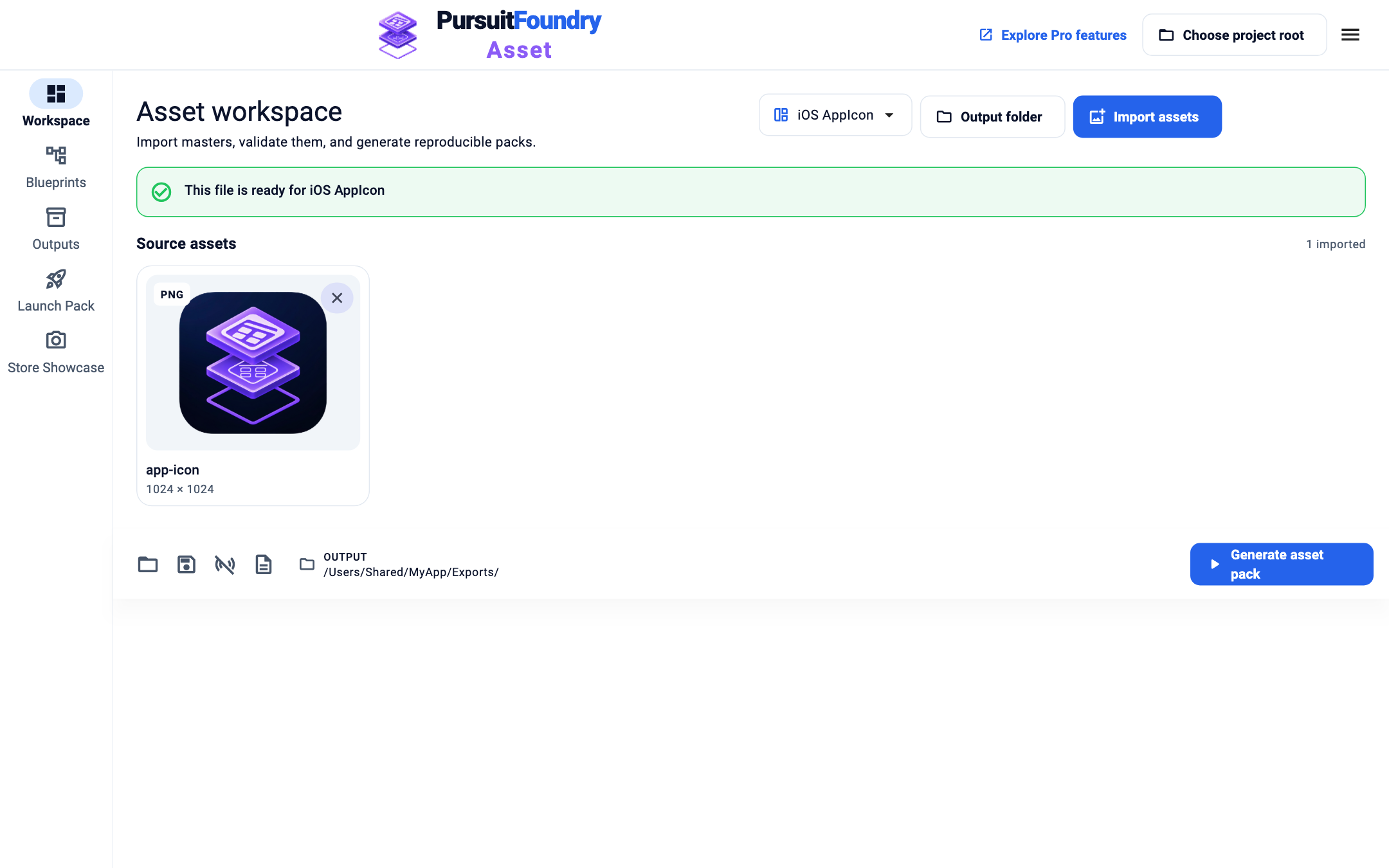
Folder Watch is on; the bottom-bar button now stops it. Keep working
When a file in the folder is added or changed, Asset regenerates outputs for that source only. Deleted files are removed from the source list.
Stop watching
Select Stop Folder Watch. A watch left on resumes when Asset next opens and catches up with changes made while it was closed.
Troubleshooting
- “The watched folder is unavailable. Choose it again to resume.”
- The folder moved or its drive was disconnected. Folder Watch turns itself off; start it again with the folder’s new location.
- “Folder Watch could not be started.”
- Check that Asset can read the folder, then try again.
- “A changed asset could not be processed.”
- The file may have been incomplete when it changed. Save it again, or check it in the Workspace.
Related
Asset · Features← All Asset help