
 ASSET HELP / GETTING STARTED
Before you start
Nothing to prepare. This tour uses a Workspace with one imported master.
How to
Use the navigation
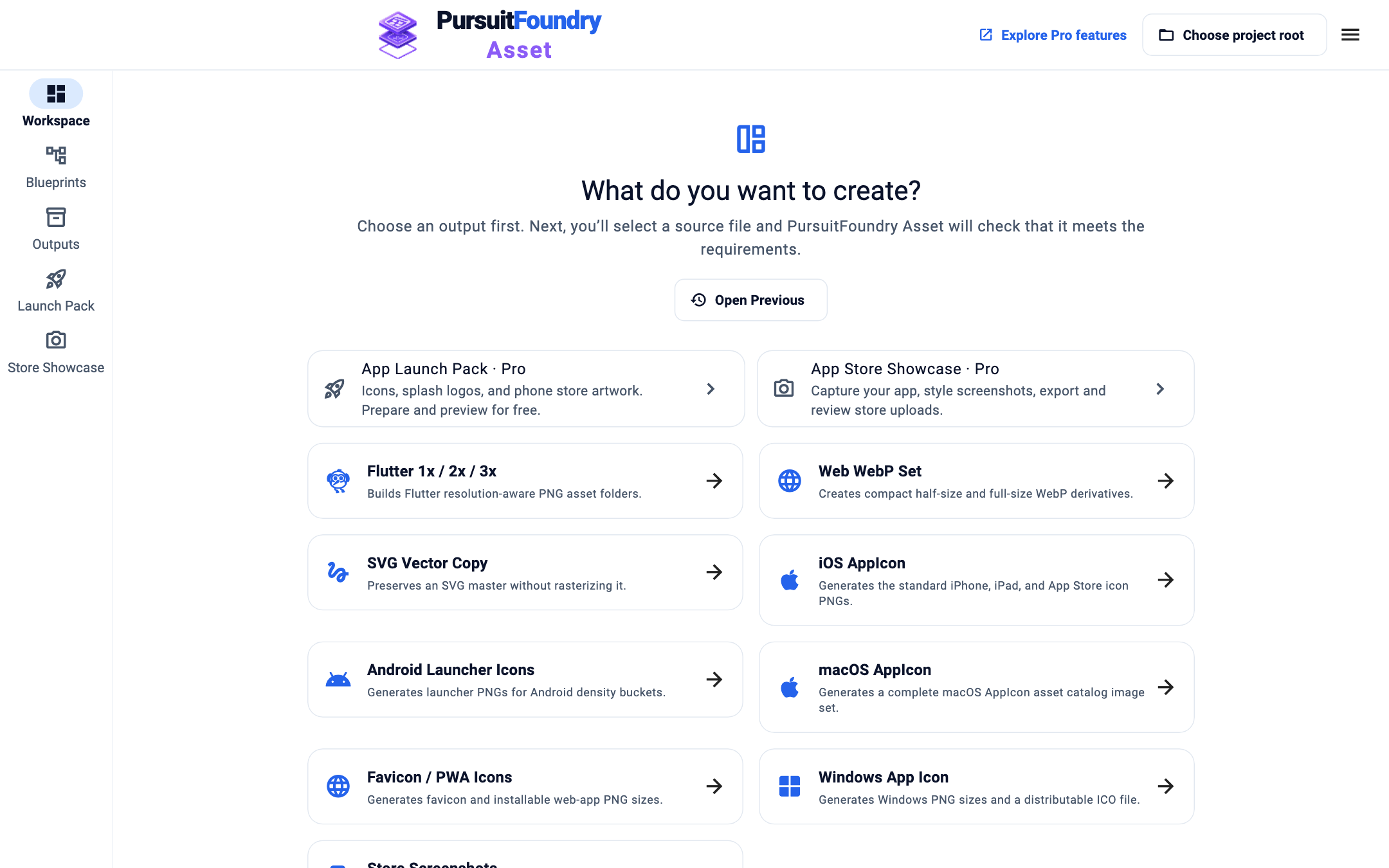
The left side lists Asset’s five tasks: Workspace for importing and generating, Blueprints for editing the steps a Blueprint runs, Outputs for jobs and files, Launch Pack and Store Showcase.
Work in the Workspace
The header holds the Blueprint picker (here iOS AppIcon), Output folder and Import assets. The bottom bar holds Open project, Save project, Folder Watch, Export validation report, the output path and Generate asset pack. You can also drag files onto the source list.
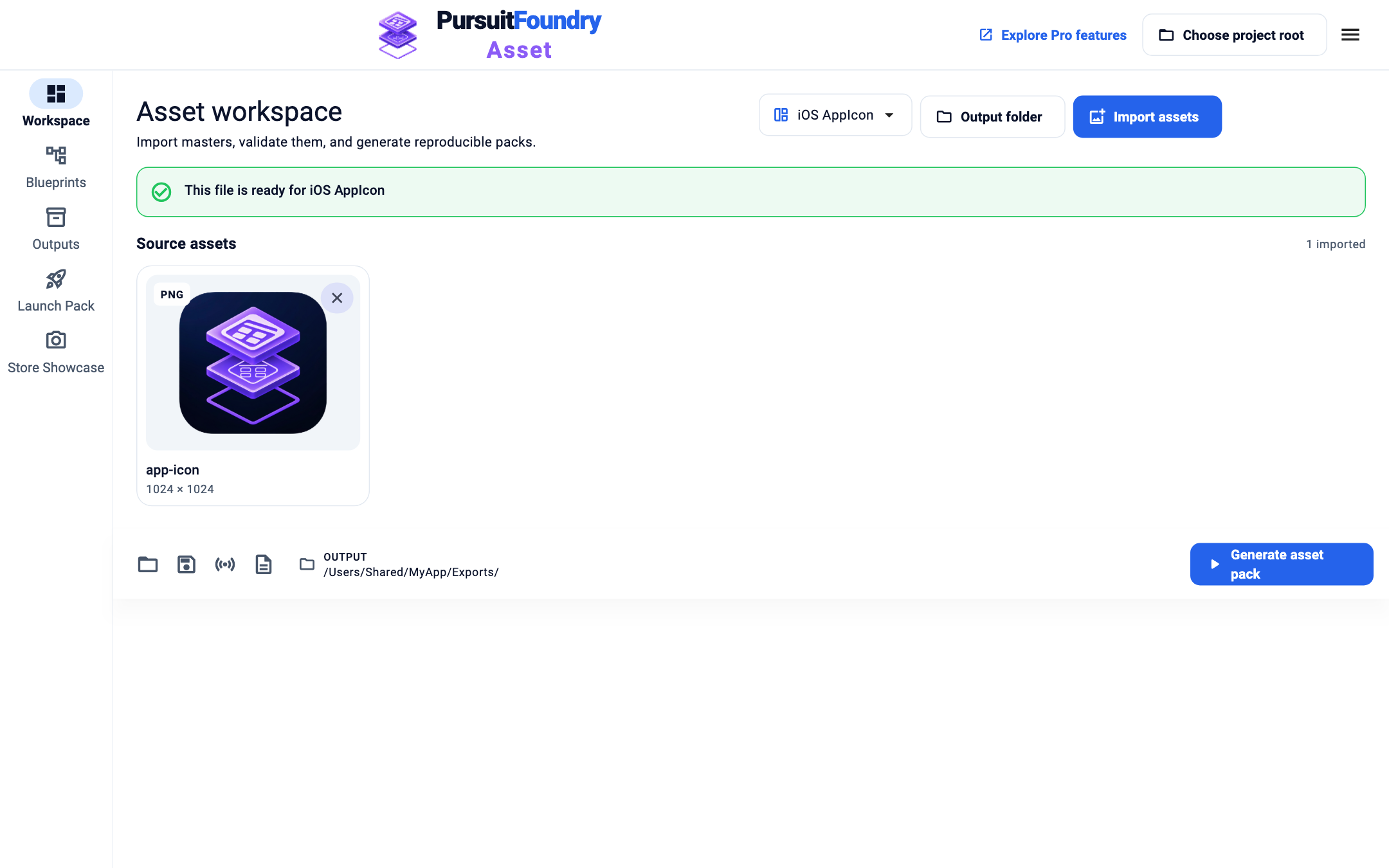
Header controls at the top, project and generate controls in the bottom bar. Edit a Blueprint
In Blueprints, your Blueprints and the built-ins are listed on the left. The steps across the top follow the order a Blueprint runs: Prepare, Compose, Outputs and Finish. Outputs lists every file the Blueprint writes, with its name, size, format and folder.
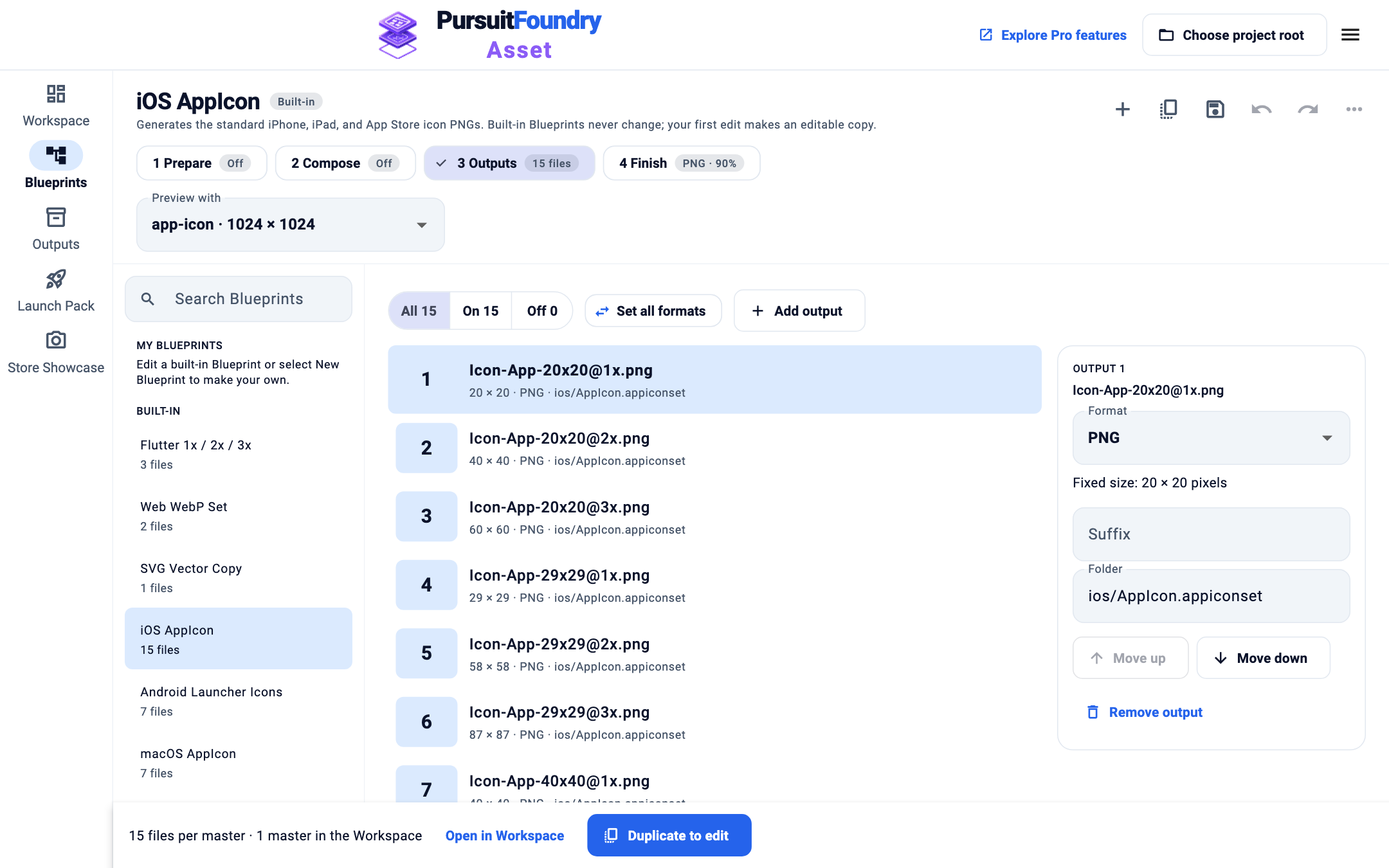
A built-in Blueprint: the list on the left, the steps, and its 15 output files. Find results in Outputs
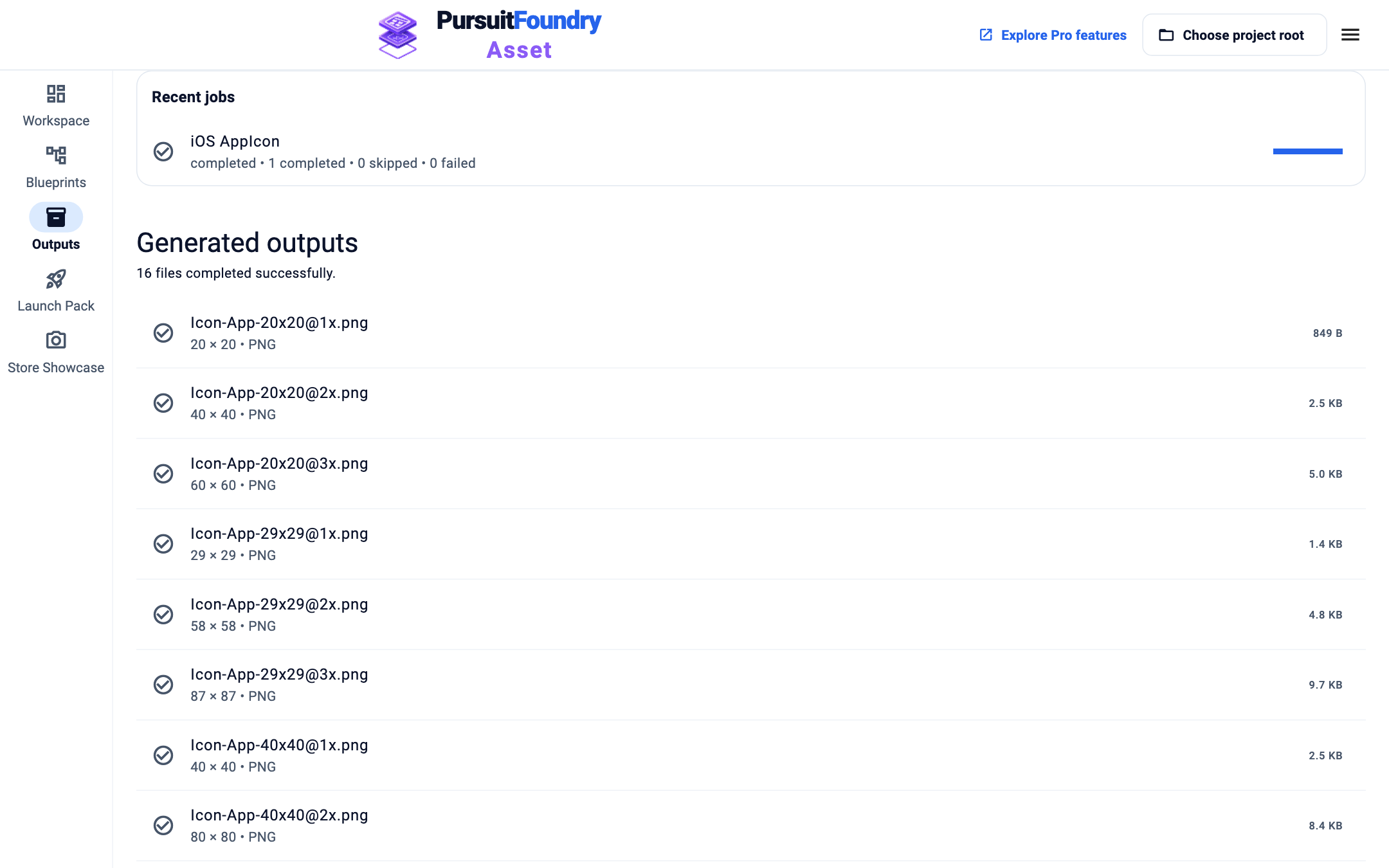
Outputs lists recent jobs, with pause, resume, cancel and retry, and the files each job produced.
Open the menu
The menu button at the top right holds Open Previous, Settings and About. Beside it are Choose project root and Explore Pro features.
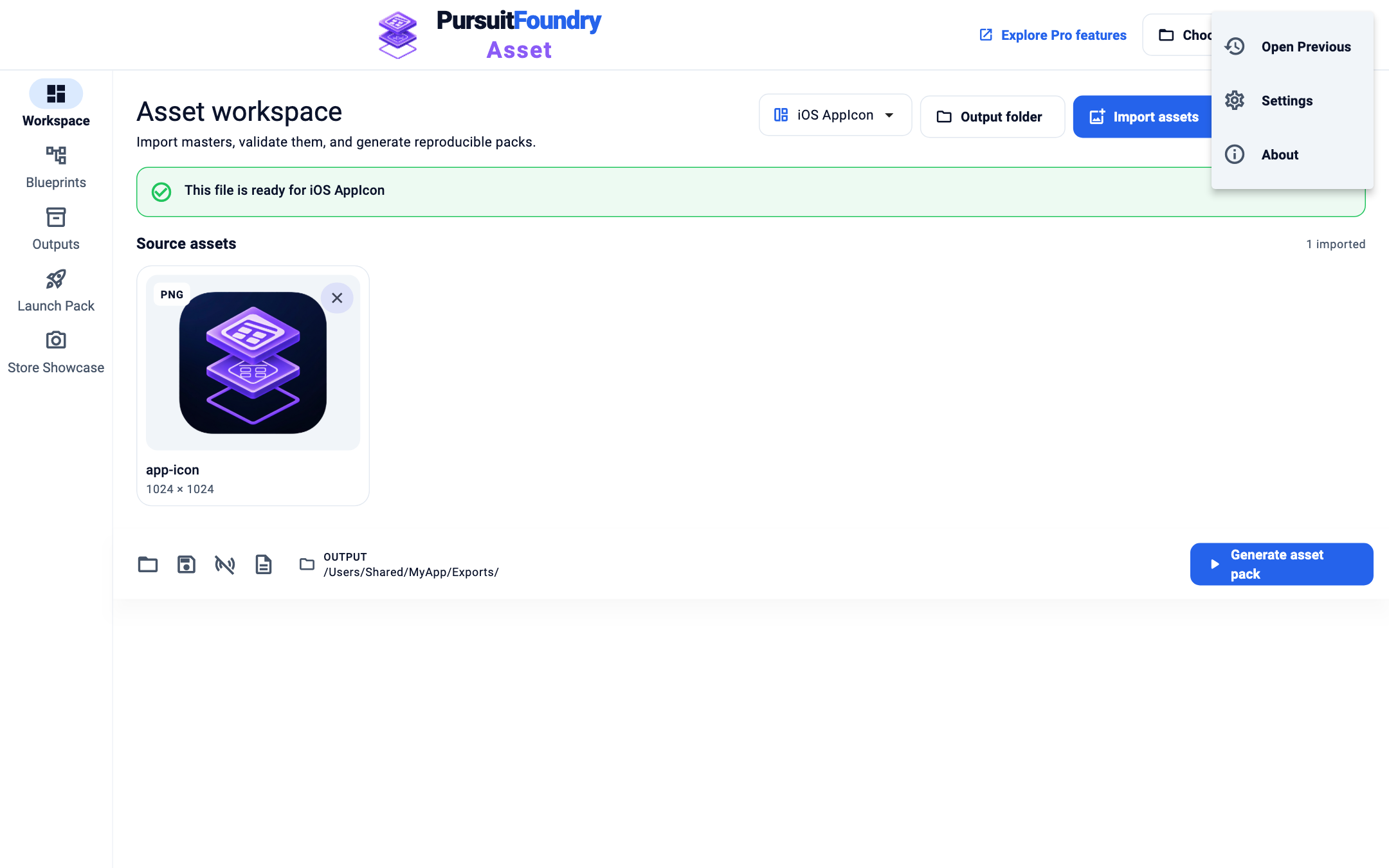
The application menu.
Keyboard shortcuts
| OPTION | WHAT IT DOES |
|---|---|
| Open a project | ⌘O on macOS, Ctrl+O on Windows |
| Save the Blueprint | ⌘S on macOS, Ctrl+S on Windows |
| Generate | ⌘G on macOS, Ctrl+G on Windows |
Troubleshooting
- I don’t see Choose project root in the header.
- In narrow windows it moves into Settings. Open the menu and select Settings.