
 ASSET HELP / FEATURES
Before you start
Check the master requirements in the table below for the generator you need.
How to
Pick a generator
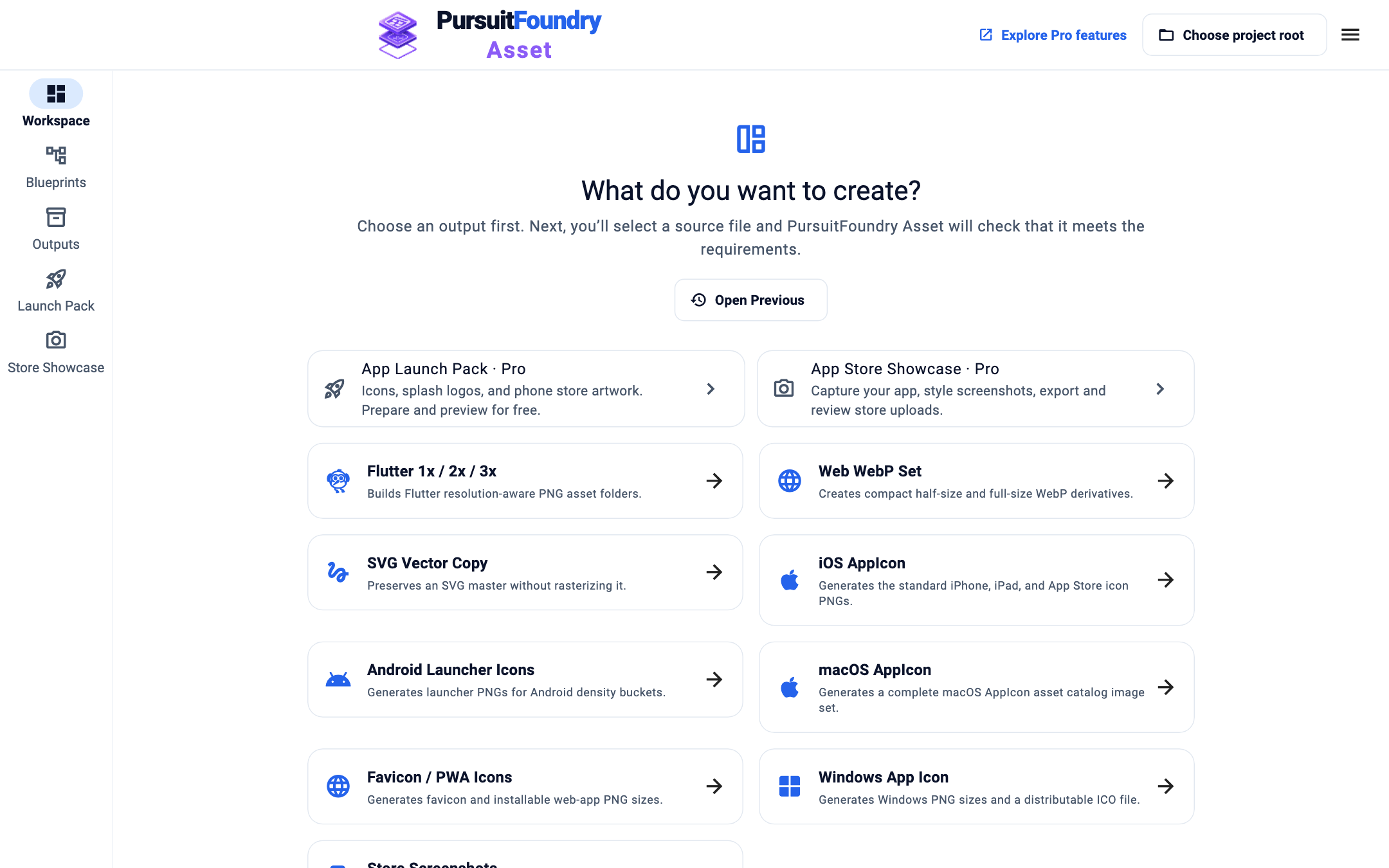
On the start screen, select the generator’s card. Asset asks for a master straight away.
Or switch generator in the Workspace
Select the Blueprint picker in the Workspace header. The list shows each generator and how many files it writes. Your imported masters stay in place and are checked again.
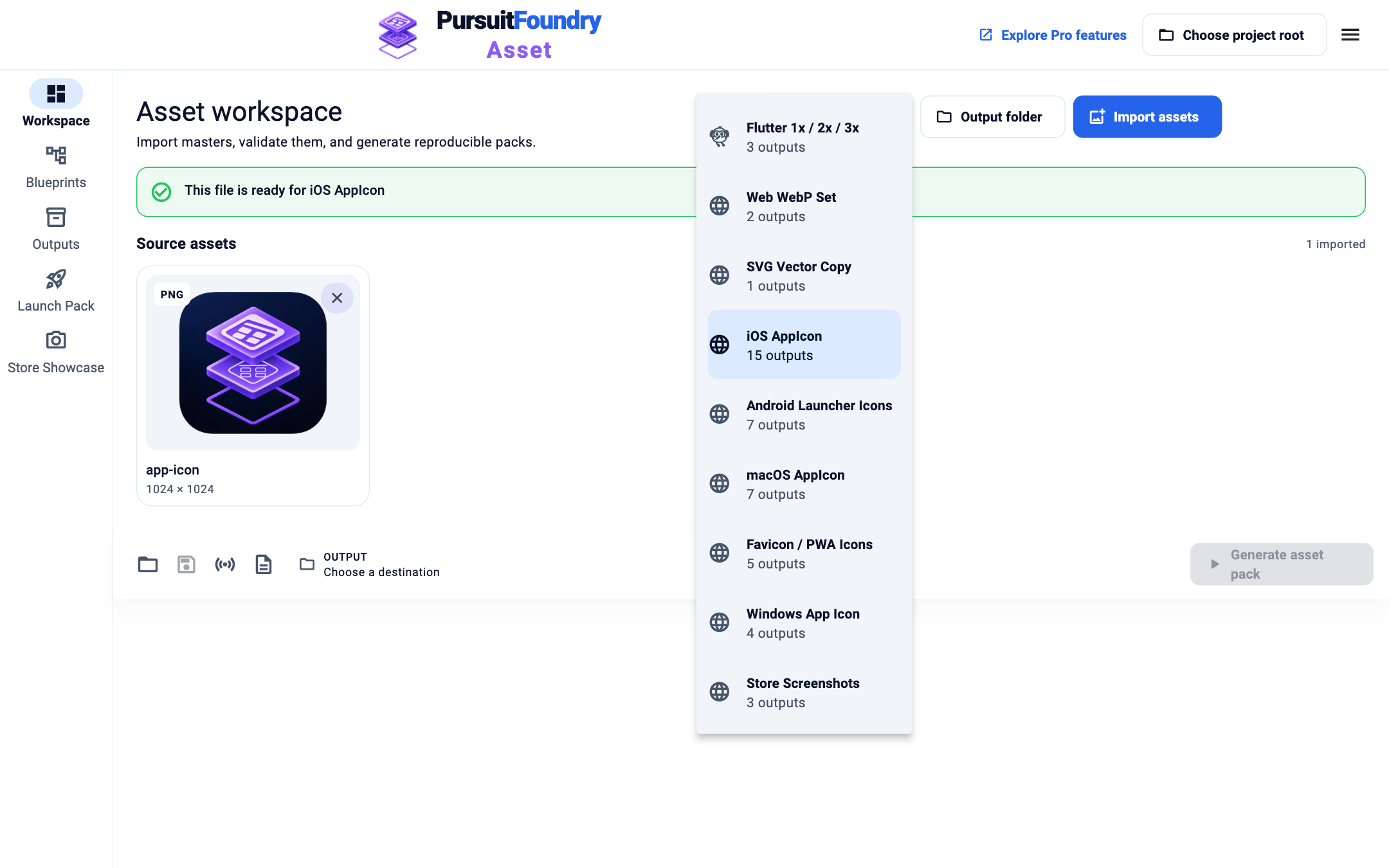
The Blueprint picker with each generator’s output count. Generate
Choose an Output folder and select Generate asset pack. See Make your first icon set for the full walk-through.
Built-in generators
| GENERATOR | WHAT IT MAKES · MASTER NEEDED |
|---|---|
| Flutter 1x / 2x / 3x | Flutter resolution-aware PNG asset folders (3 outputs). Any size. |
| Web WebP Set | Compact half-size and full-size WebP derivatives (2 outputs). Any size. |
| SVG Vector Copy | Preserves an SVG master without rasterizing it (1 output). SVG only. |
| iOS AppIcon | The standard iPhone, iPad and App Store icon PNGs (15 outputs). Square, at least 1024 × 1024. |
| Android Launcher Icons | Launcher PNGs for Android density buckets (7 outputs). Square, at least 512 × 512. |
| macOS AppIcon | A complete macOS AppIcon asset catalog image set (7 outputs). Square, at least 1024 × 1024. |
| Favicon / PWA Icons | Favicon and installable web-app PNG sizes (5 outputs). Square, at least 512 × 512. |
| Windows App Icon | Windows PNG sizes and a distributable ICO file (4 outputs). Square, at least 256 × 256. |
| Store Screenshots | Common portrait screenshot deliverables (3 outputs). At least 1080 × 1920. |
Results
Edit any generator in Blueprints to change its outputs, formats or folders; your first change makes an editable copy. See Blueprints.
Troubleshooting
- “This platform requires a square master asset.”
- Use a square image, or one within 10% of square and add a resize action. See Check validation and the output plan.
- “The master format is not allowed by this preset.”
- SVG Vector Copy accepts SVG only, and the raster generators accept PNG, JPEG and WebP.
Related
Asset · Features← All Asset help